

Tasks list
The list shows each task’s title, priority, due date and assignee. Overdue tasks sort to the top so the most pressing work is always in view. You can complete or reopen a task straight from the list.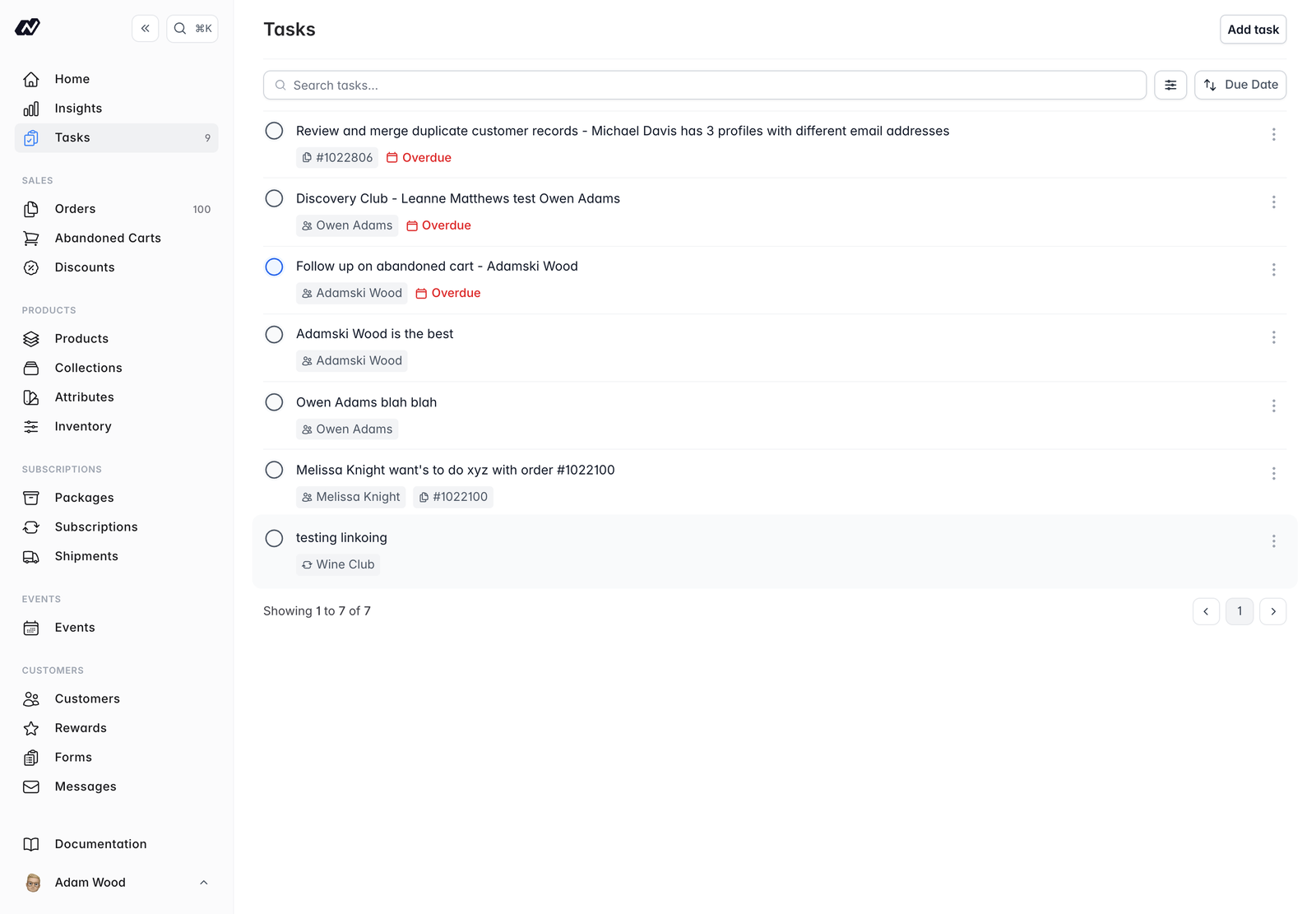
Creating a task
Click to add a task and fill in:- Title - what needs doing. Type
@to link a record (see @mentions below) - Priority -
Low,Medium,HighorUrgent - Due date - pick a date, or use the Today, Tomorrow or Next Monday presets
- Assignee - who is responsible. This defaults to you
@mentions
Type@ in a task title to link the task to a customer, order, subscription or event. The linked task then appears as an activity entry on that record’s timeline, so anyone looking at the record can see the related task in context.
Permissions
What each team member can do with tasks is set by their role:- Creating, editing and deleting tasks
- Assigning work to someone other than themselves
- Viewing everyone’s tasks rather than only their own
Filtering
Narrow the list using these filters:- Assignee - users with the right permission can view everyone’s tasks; other users see only their own
- Status -
incompleteorcomplete - Priority
- Due date