

EzyPro keeps a separate database per market, and collects each one’s file from its own folder. A single install here covers every market. You configure each market separately below rather than installing the integration more than once.
Connection
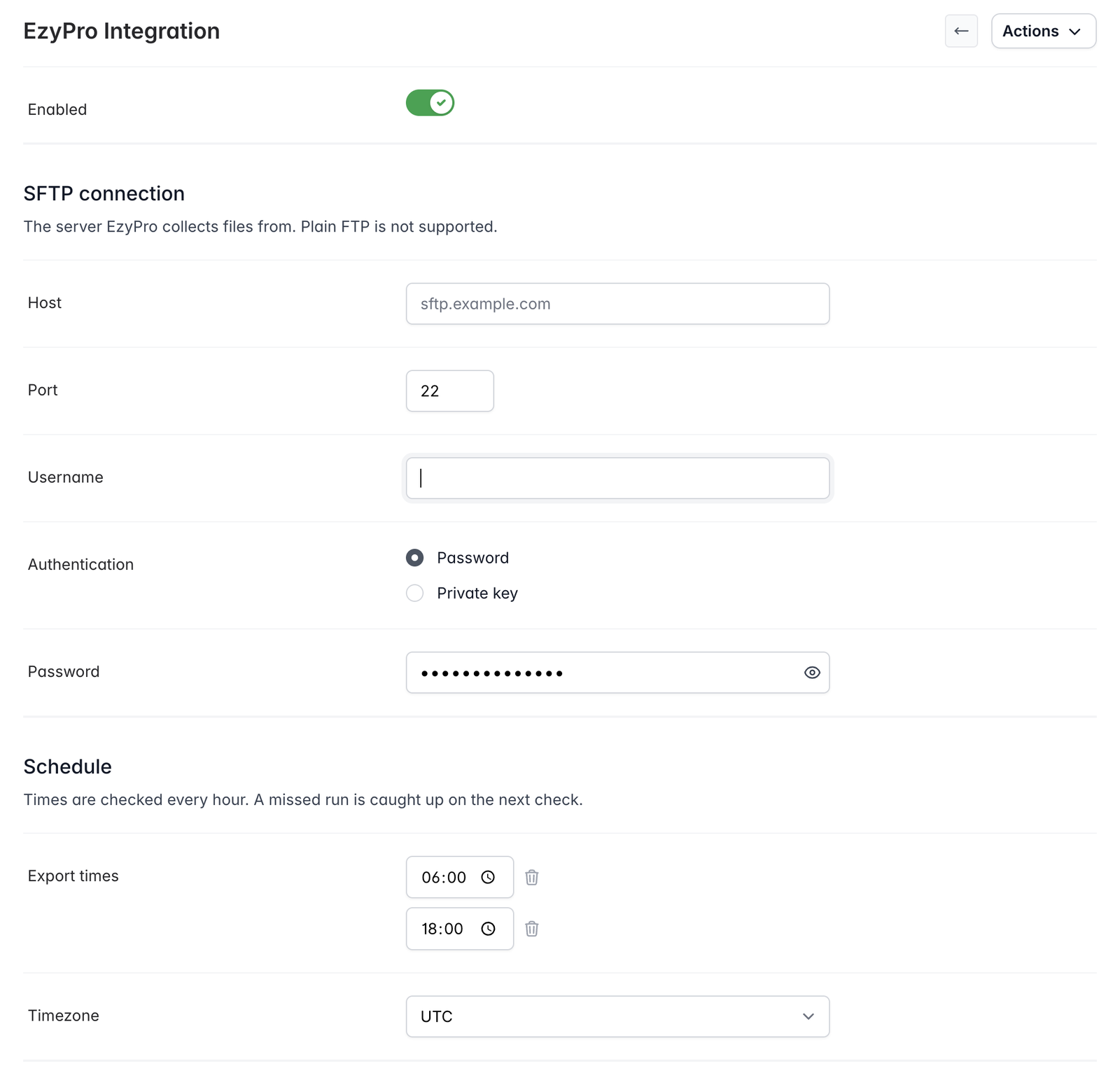
EzyPro is reached over SFTP. Plain FTP isn’t supported.- Host and Port - Where to deliver the file
- Username
- Authentication - Password, or a Private key with an optional Passphrase
Schedule
- Export times - Up to two times a day. Each market’s file is written at these times.
- Timezone - The timezone the export times are read in
- Order statuses - Which order statuses to include in the export
Each market
Every market has its own section, with its own toggle beside the heading. Turning one off doesn’t affect the others, and a market that fails to export never stalls another.- Remote folder - The folder on the EzyPro server this market’s file goes to. Limited to 30 characters, which is EzyPro’s own limit.
- File prefix - The start of the filename. The resulting filename is shown beneath, for example
orders-2026-08-25-0600.csv. - Export orders from - The date to start exporting from. Use Include every order to set this from the market’s first order.
- SKU matching - Map your products to the product codes EzyPro holds for this market
SKU matching
EzyPro keeps its own product codes, and because each market is a separate EzyPro database, the codes differ per market. Pick the product and give its EzyPro code for that market. Matching ignores capitalisation, so a code pasted straight out of EzyPro works as it is. A product you haven’t mapped is exported under the SKU you hold rather than being left out, so nothing goes missing quietly.Locked settings
Once a market has exported, its remote folder and export orders from date lock, since changing either after orders have gone affects what EzyPro has already taken. Both can be unlocked by an owner or administrator:- Start again clears the market’s progress and unlocks the date, so every order from the start date goes again
- Unlocking the remote folder is a separate action, so correcting a folder doesn’t mean resending orders