

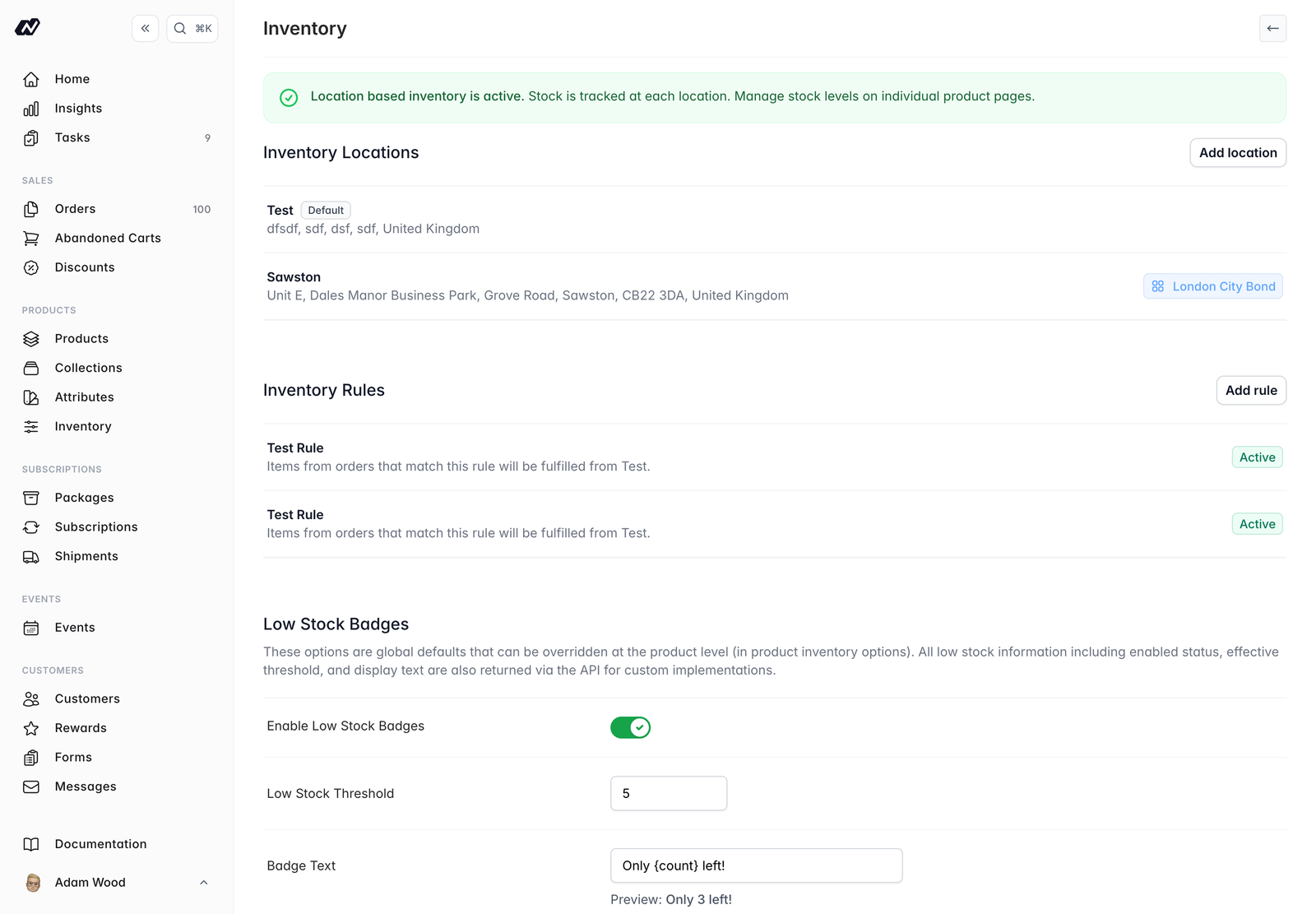
Location-based inventory
Location-based inventory is off by default. To start tracking stock per location, initialise it once. This copies your current stock to your default location, after which stock is managed on each product. Until you initialise it, a banner on this page prompts you to do so, with a default-location picker if you haven’t set one yet, and the inventory page shows a callout with its inputs disabled.Inventory locations
Add the locations you hold stock in, each with a name and address, and set one as your default.Inventory rules
Once you have more than one location, add inventory rules to choose which location fulfils an order based on conditions such as the shipping country.Stock movements
Every change to stock is recorded as a movement with a reason, so you always have a full history. Reasons include:- Received
- Write off
- Stock take
- Transfer (in or out)
- Return
- Order
- Wholesale
- Initial stock
- Derived
- Other
Adjusting stock
Use Adjust stock on the inventory page to correct several products in one go, which is what a wholesale order with multiple lines needs. Add products by search, give each line its own quantity up or down, then set one location, reason, note and optional trade customer across the whole batch. The current stock at the chosen location is shown against each line as you go. The batch is applied together, so a single bad line can’t leave an adjustment half applied. You can also import a CSV with one row per SKU per location.Exporting inventory
Click Export on the inventory page to download the current filtered view as a CSV, with one column per inventory location plus a total. Filter the list first to export only the products you need.Low-stock badges
Show customers when stock is running low with a storefront badge.- Enable the badge and set a threshold
- Add custom text, which supports a
{count}placeholder for the remaining quantity - Override the badge per product where needed
Low-stock alerts
Email your team when a product’s stock falls to a set level.- Enable alerts and set an alert threshold
- Choose a delivery style:
- Real-time - Sent immediately, at most one per product every 24 hours
- Daily digest - A single email at 8am
Only team members who have opted into the low-stock notification receive these alerts. Manage this under Settings > Team.