

POS setup and selling happen in the Marzipan mobile app. The web app is where POS orders are reviewed and managed.
Permissions
Selling through POS requires staff permissions, set via Roles:pos.charge- required to take POS salespayments.collect- required to take card payments
Quick Pay
Quick Pay is the fastest way to build a sale. Add products from your catalogue, or add custom line items by entering a free-text name, price and quantity for anything that isn’t in your catalogue.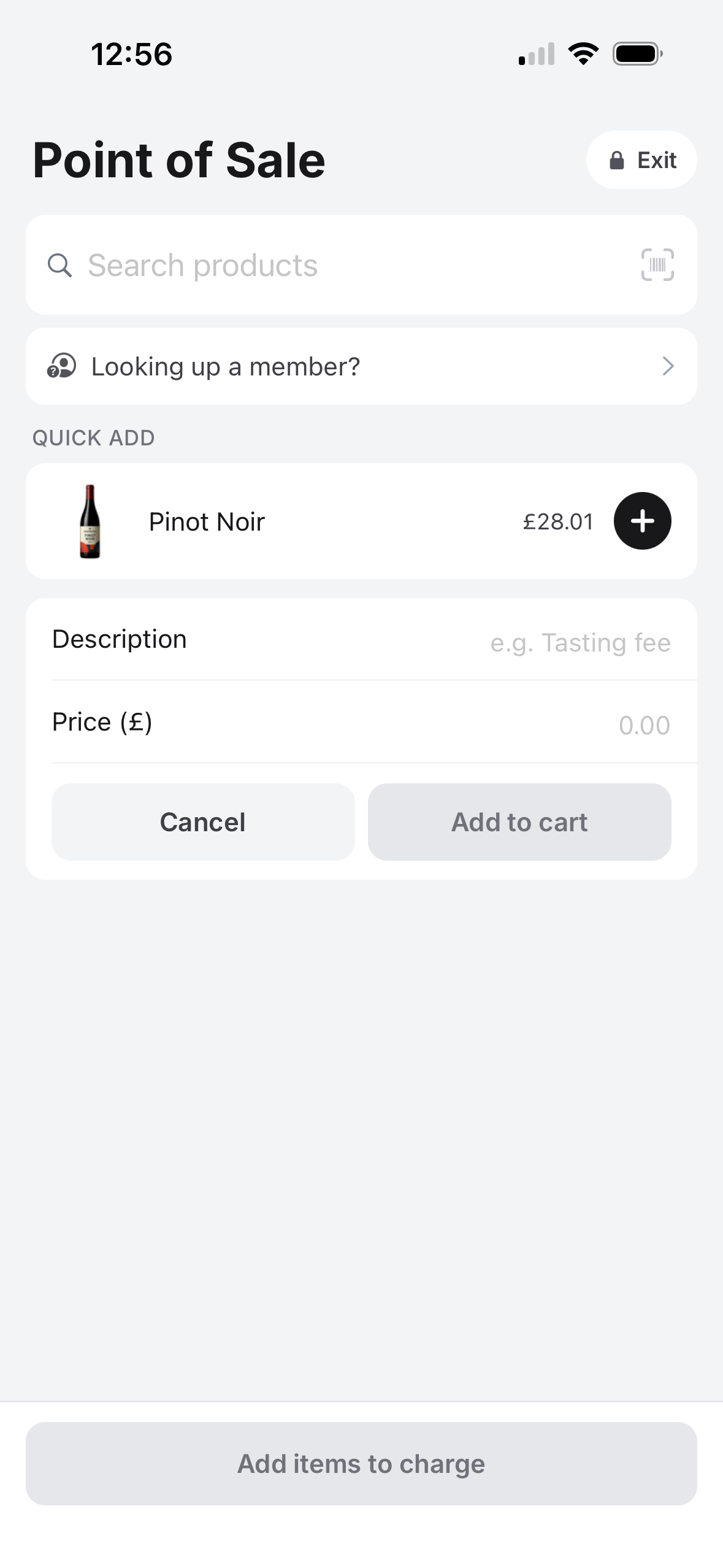
Walk-in customer
Sales default to a shared “walk-in” placeholder customer, so you can sell quickly without stopping to capture customer details.Identify a customer at the till
Search for a customer by name or email to attach the sale to them. Identifying a customer surfaces subscriber pricing for members, which is useful when selling to members at events, and the cart re-prices as soon as you identify or clear them.Discounts
Apply a percentage or fixed-amount discount to the whole sale at the till. Any automatic discounts you run apply to POS orders too, so the customer is charged the discounted total.Newsletter opt-in
If you have a default mailing list, the till can offer a newsletter opt-in when you take the customer’s email. It applies whether you send the receipt or skip it.Tap to Pay on iPhone
Take card payments in person with Tap to Pay on iPhone, powered by Stripe Terminal on your Stripe Connect account. This requires the card-present capability on your Stripe account. Terminal locations can be created automatically from your business address, or added manually. Once a payment is approved, a card-present payment shows on the order in the web app with a Tap to Pay indicator, along with the card brand and the last 4 digits of the card.Receipts
Once payment is approved, you can email a POS receipt to the customer. Capture the customer’s email (and an optional name) to send it. Sending the receipt also links the walk-in order to that customer. You can Skip the email to link a customer to the order without sending a receipt.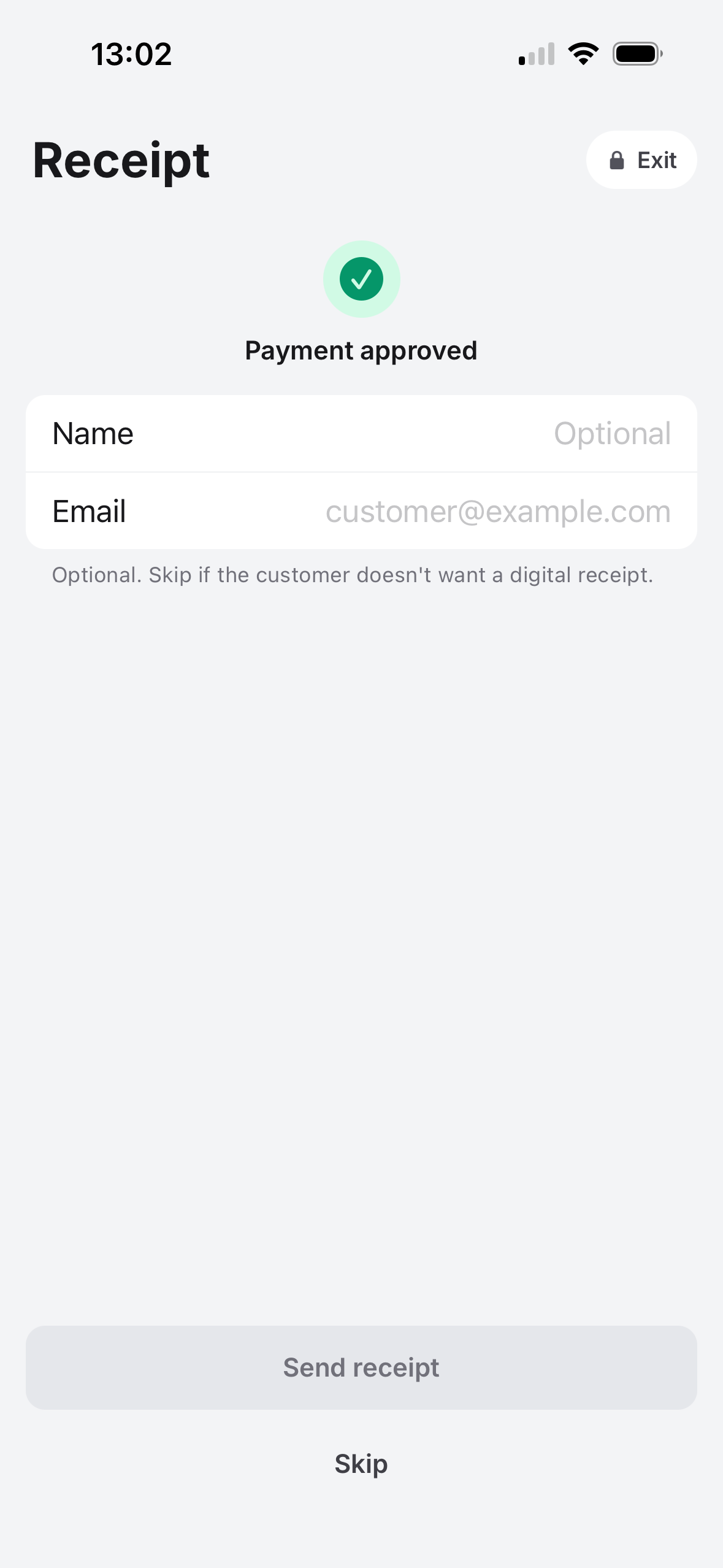
Assign a walk-in order later
If a sale went through as a walk-in, you can assign it to a real customer afterwards. From the order’s Actions menu in the web app, choose Assign customer. This re-links the order only. It does not re-price the order.POS orders and flows
Flows on theorder.paid trigger skip POS orders unless the flow opts in with Include POS orders. A till sale has no delivery address and uses the walk-in customer, so a delivery-shaped flow shouldn’t treat it like a web order.
Order lifecycle
POS orders start as a draft. Once paid, they becomeprocessing and then completed. If stock is oversold, the order goes on hold until it can be resolved.