

- Log in to your Marzipan account
- Click on Subscriptions in the main navigation menu
- Select Packages
Creating and editing a package
1
Set the basics
When you create or edit a package you can set:
- Name - the package name shown to customers
- Slug - the URL-friendly identifier
- Type -
fixed,variableorpicknmix - Summary and Description - short and long copy for the storefront
- SKU - the package’s stock-keeping unit
- Minimum items - for pick & mix packages, the fewest items a customer must choose
- Collections - the collections the package belongs to
- Availability - when the package can be subscribed to
- Status - whether the package is
active
2
Set the pricing
For multi-market stores, per-market pricing tabs let you set prices for each market.
3
Choose the billing frequency
Choose the billing frequencies you want to allow, each expressed as every N months.If you offer more than one frequency, set a default. Customers pick their frequency on the storefront, shown as boxes or a dropdown, with your default pre-selected. See Product. The default is also what’s used anywhere the choice isn’t offered.
The frequency a customer chooses is recorded on their cart, so the subscription is created on the terms they were shown rather than on whatever the package defaults to by the time the order lands.
4
Configure the renewal options
Renewal options control how and when subscriptions renew. See Renewal options below.
5
Choose what subscribers can do
Decide whether customers can skip, move or bring forward a delivery from their account. See What subscribers can do below.
6
Save the package
Review the package and save it. Set the Status to
active when you are ready for customers to subscribe.Shipment dating
Variable packages choose how their shipments are dated:- Scheduled dates - each shipment carries a processing and shipping date. Every subscriber on the plan renews against the shipment dated for that day.
- Availability window - each shipment carries an available-from date and an optional available-to date. Subscribers renew on their own anniversary and receive whichever window covers that date.
Windows for the same product may not overlap, and an open-ended window blocks any later one. Marzipan rejects an overlapping window when you enter it rather than picking between them at renewal.
Renewal options
Renewal options control how and when subscriptions renew:- First-order cut-off window - how long a customer has before their first renewal is due
- Auto-renew - renew subscriptions automatically
- Requires shipping - whether renewals need a shipping address
- Grace period - extra time allowed after a renewal is due
- Free-renewal rule - a builder for rules that grant a free renewal
- Renewal reminder emails - reminders sent 30, 21, 14, 7, 3 and 1 days before renewal
If a renewal payment fails, Marzipan retries it before cancelling the subscription. See Failed renewals.
What subscribers can do
Each package decides what a customer may do to their own subscription from the account area. Not every club can honour every action: a twice-yearly club has no stock to send early, while a monthly one does.- Customers can skip a box - miss the next delivery, with the payment moving on with it. On by default
- Boxes they can skip at once - how far ahead they can skip before one has to come, from 1 to 12. One at a time unless you say otherwise
- Customers can move a delivery - push the next one back to a later date. Off by default
- Customers can send a box early - charge and send the next one immediately. Only worth offering where there is stock to send. Off by default
Pausing has been withdrawn in favour of skipping. Subscriptions already paused come back on the day they said.
Package metrics and tabs
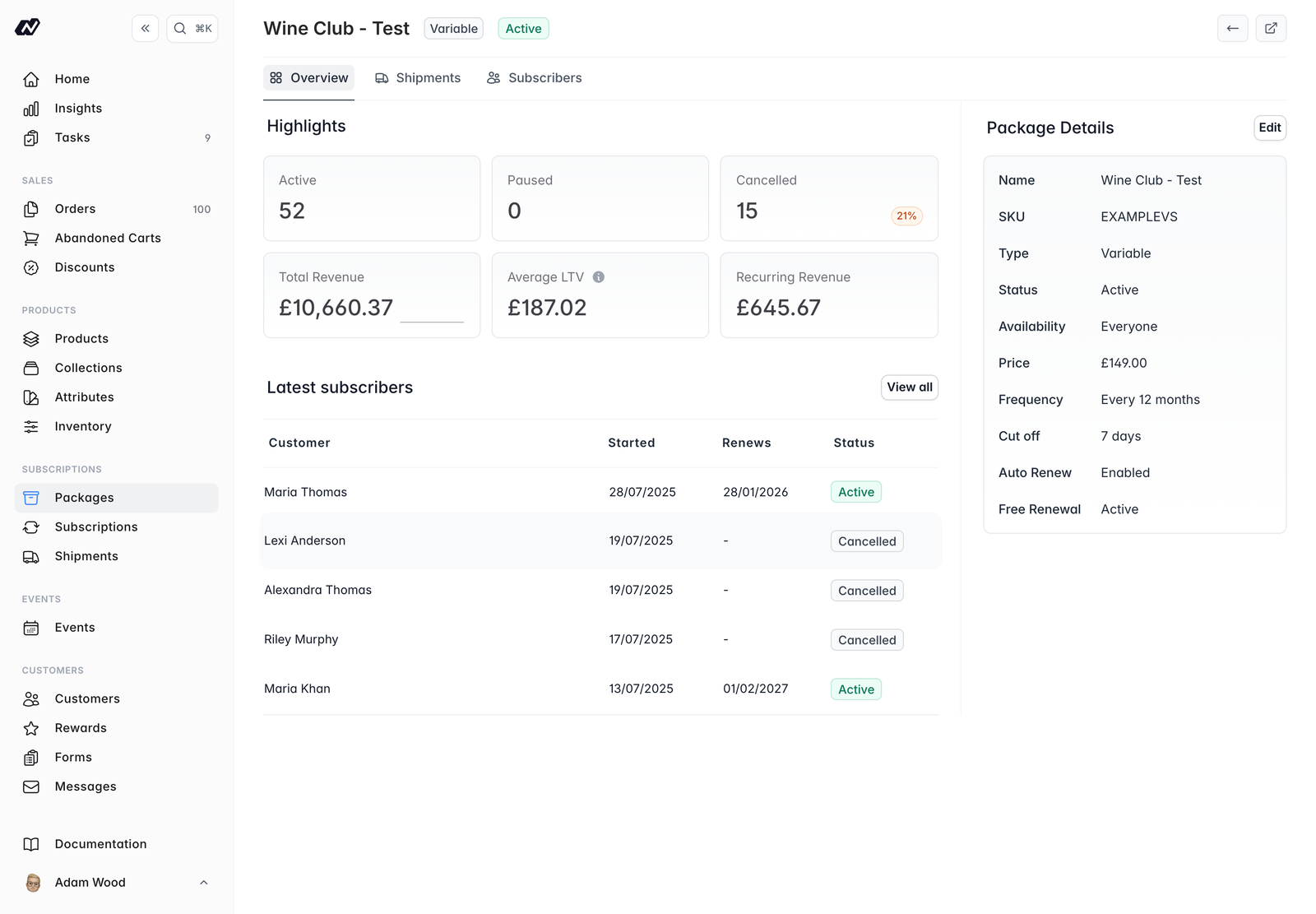
The package detail screen shows key metrics:- Active, paused and cancelled counts
- Total revenue
- Average lifetime value (LTV)
- Monthly recurring revenue (MRR)
- Variable packages have a Shipments tab for scheduling changing shipments, and choose how those shipments are dated. See Shipment dating below and Shipments.
- Pick & Mix packages have an Available items tab, where you set the default, minimum and maximum quantities per item.
Available items
For pick & mix packages, the Available items tab is where you choose which items customers can pick from. For each item you set:- The default quantity
- The minimum quantity
- The maximum quantity