
- Log in to your Marzipan account
- Click on Orders in the main navigation menu
- By default the overview page will display all your orders by order date (newest first)
Orders
The main orders table displays key information for each order.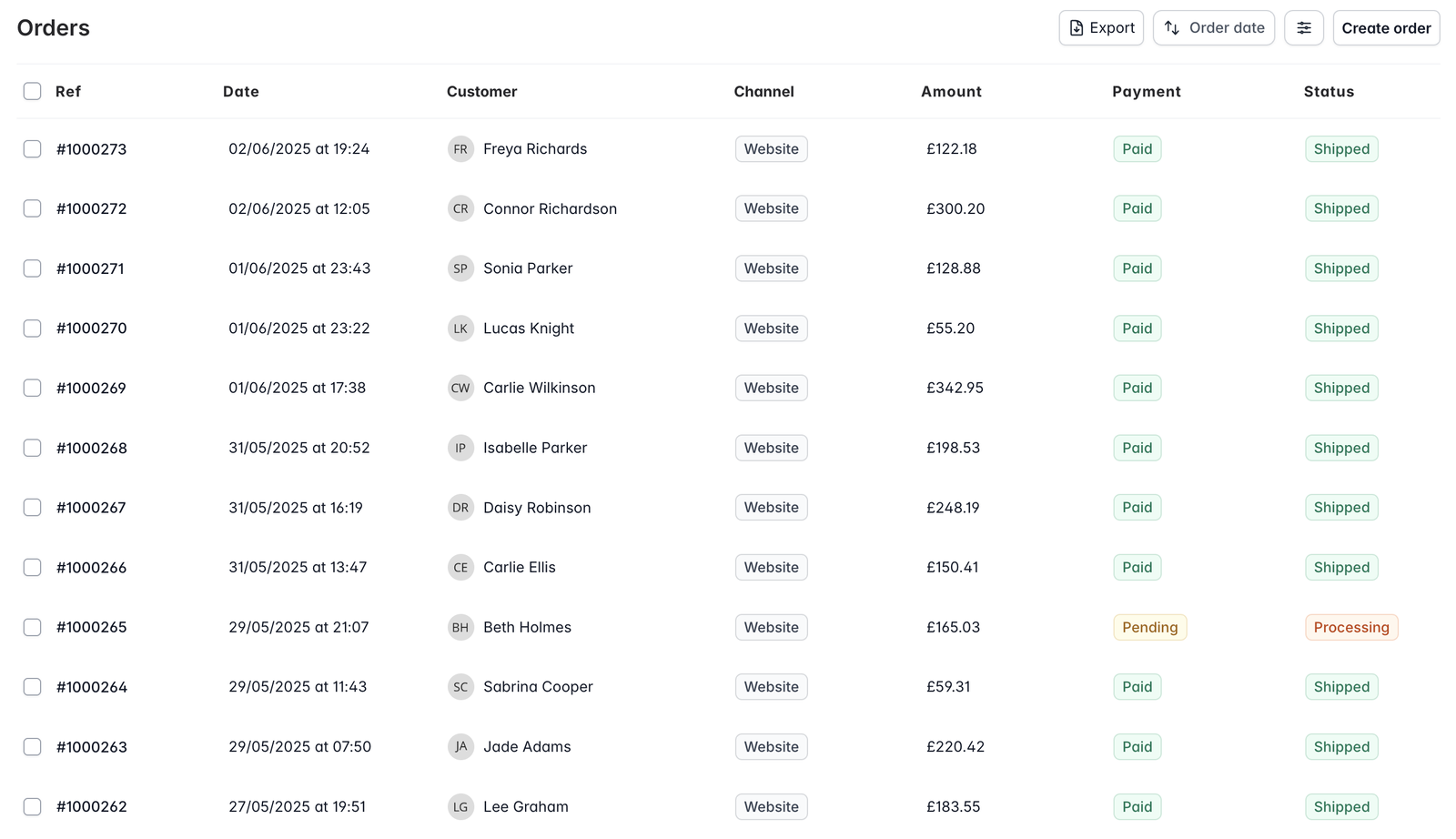
- Ref - the unique reference for each order
- Date - when the order was placed
- Customer - name of the customer
- Channel - the channel the order was placed through, including
posfor point-of-sale sales - Market - the market the order belongs to (only shown when your store has more than one market)
- Amount - the total amount of the order
- Payment - whether payment has been received (
paid,pending,failed,refunded,partially refunded, orfreefor zero-total orders) - Status - the current order status (Processing, Shipped, Cancelled, etc.)
- Customer details
- Order items and quantities
- Applied discounts
- Shipping details
- Payment information
- Order notes and history
Header actions
The top-right corner of the orders table has a few actions:- Order Insights - opens the orders report so you can review sales performance
- Bulk shipment update - upload a CSV to set tracking and status across many orders at once (see Fulfilment)
- Export - download the orders in the table as a CSV file
- Create order - open the manual order form
Bulk Actions
Perform actions on multiple orders simultaneously by selecting the orders you want to action, or selecting all orders on the page, using the checkbox in the first column of the table.- Add tags
- Cancel orders
- Export order data
Filtering and Searching
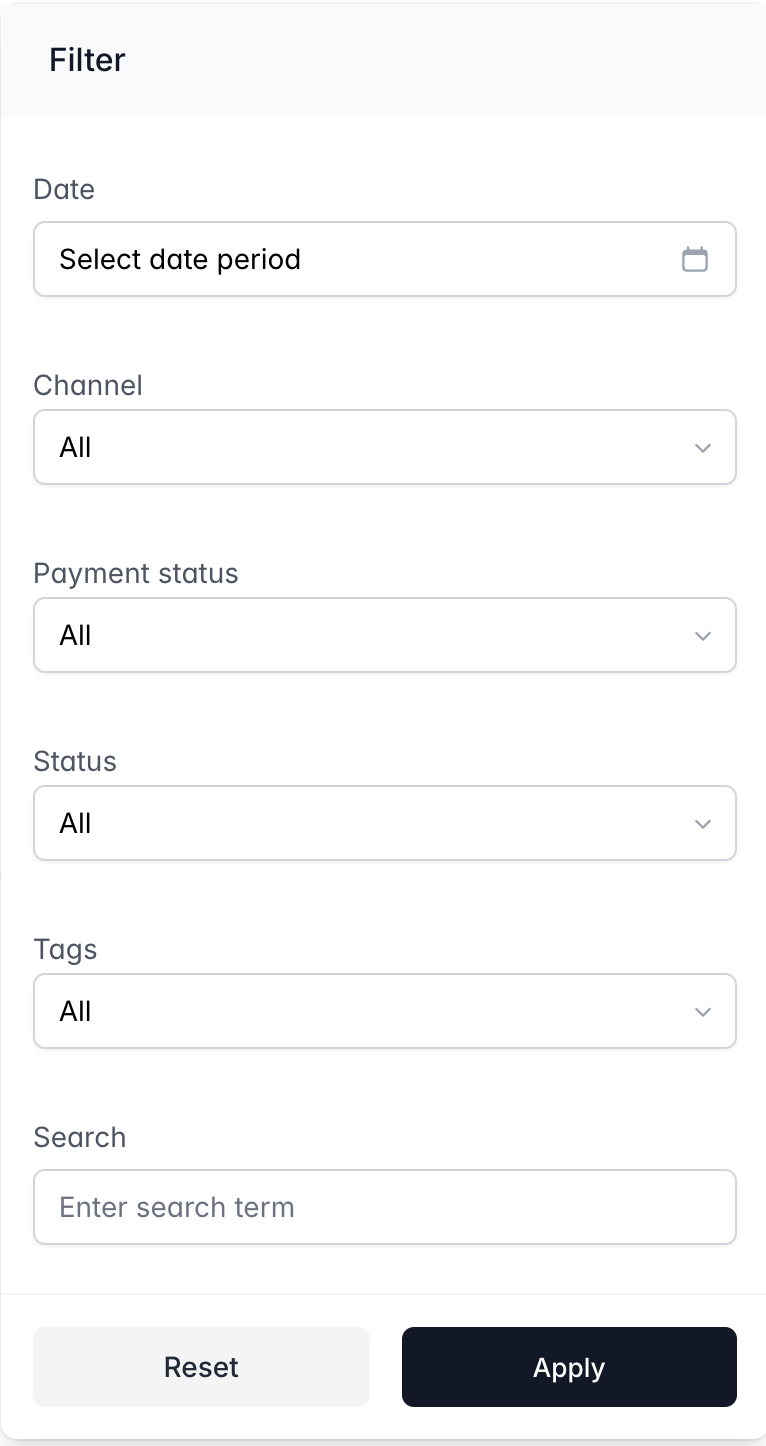
You can locate specific orders using the search box(⌘K), which is the fastest way if you know the order number or customer name, or by filtering the orders table using the following options:
- Order date
- Channel - including POS for point-of-sale sales
- Market - only shown when your store has more than one market
- Payment Status
- Status
- Tags
- Search term - searches the billing and shipping name
Exporting Orders
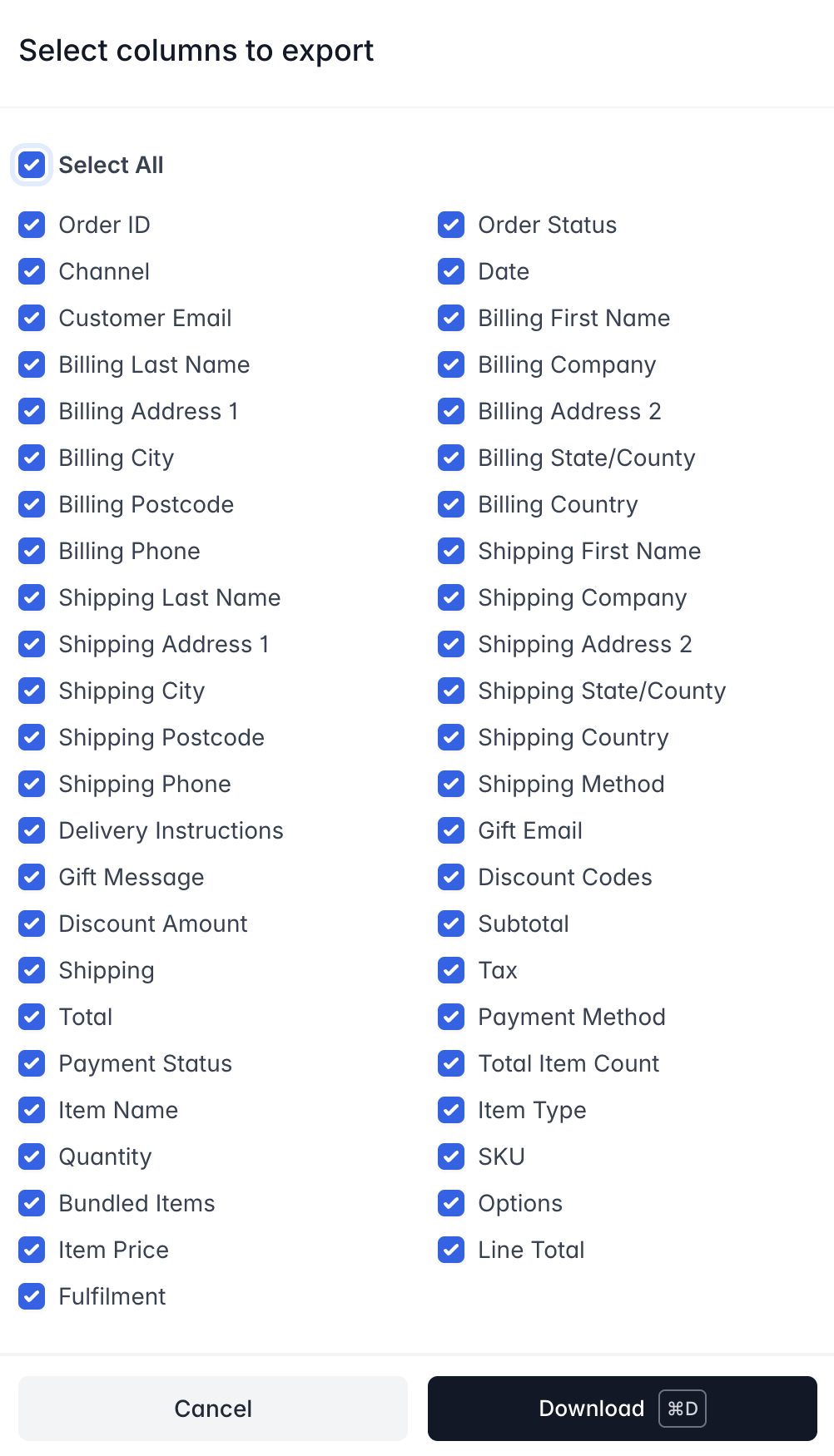
You can export orders to a CSV file by clicking the Export button in the top-right corner of the orders table. This will download a CSV file containing all the orders in the table. When you click the Export button, you will be shown a modal where you can select the fields you want to export. The app will remember your selection for the next time you export orders. Alongside the standard fields, you can opt into:- Processing fee - what Stripe charged you to take the payment
- Net amount - the order total less that fee
- Answers to any custom checkout fields you ask
Processing fee and net amount are summed across every payment on the order, since an order can be settled by more than one. They stay blank rather than showing
0.00 where no fee has come back from Stripe yet.