> ## Documentation Index
> Fetch the complete documentation index at: https://docs.marzipan.co/llms.txt
> Use this file to discover all available pages before exploring further.
# Inventory
> Track stock across locations, with movements, alerts, and low-stock badges.
Inventory settings let you track stock across one or more locations, record every change, and warn customers and your team when stock runs low.
Navigate to **Settings > Inventory** to manage your inventory.
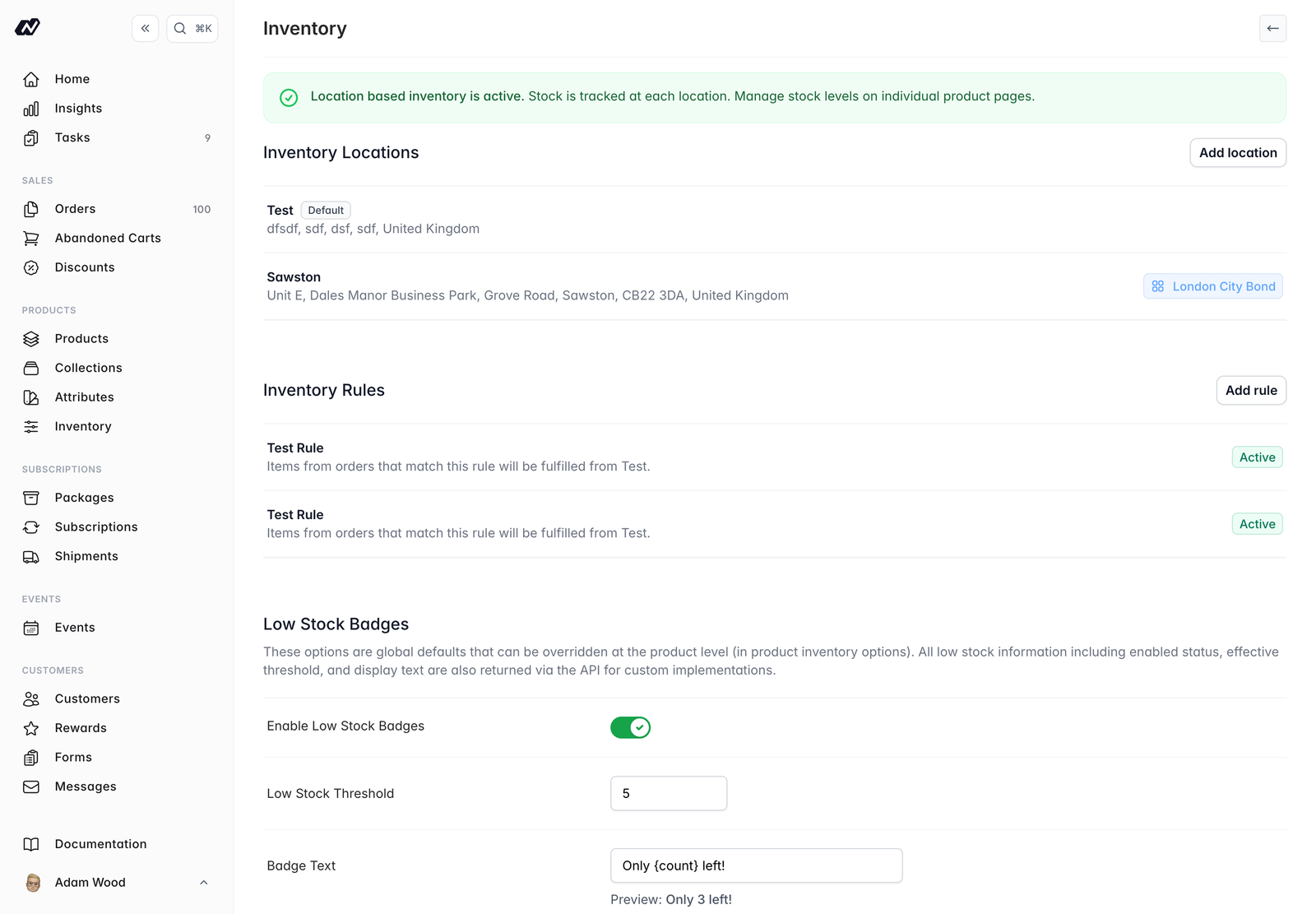 ## Location-based inventory
Location-based inventory is **off by default**. To start tracking stock per location, **initialise** it once. This copies your current stock to your default location, after which stock is managed on each product.
Initialising location-based inventory **can't be undone**. Make sure your current stock figures are correct before you start.
### Inventory locations
Add the locations you hold stock in, each with a **name** and **address**, and set one as your **default**.
### Inventory rules
Once you have more than one location, add **inventory rules** to choose which location fulfils an order based on conditions such as the shipping country.
## Stock movements
Every change to stock is recorded as a movement with a reason, so you always have a full history. Reasons include:
* **Received**
* **Write off**
* **Stock take**
* **Transfer** (in or out)
* **Return**
* **Order**
* **Initial stock**
* **Other**
You can add optional notes to any movement.
## Bulk stock adjustment
Adjust many products at once rather than editing them one by one. You can also **import a CSV** with one row per SKU per location.
## Low-stock badges
Show customers when stock is running low with a storefront badge.
* Enable the badge and set a **threshold**
* Add **custom text**, which supports a `{count}` placeholder for the remaining quantity
* Override the badge per product where needed
## Low-stock alerts
Email your team when a product's stock falls to a set level.
* Enable alerts and set an **alert threshold**
* Choose a delivery style:
* **Real-time** — Sent immediately, at most one per product every 24 hours
* **Daily digest** — A single email at 8am
Only team members who have opted into the low-stock notification receive these alerts. Manage this under **Settings > Team**.
## London City Bond
If you use the [London City Bond](/settings/integrations) integration, stock syncs automatically into a dedicated inventory location. This requires location-based inventory to be initialised first.
## Location-based inventory
Location-based inventory is **off by default**. To start tracking stock per location, **initialise** it once. This copies your current stock to your default location, after which stock is managed on each product.
Initialising location-based inventory **can't be undone**. Make sure your current stock figures are correct before you start.
### Inventory locations
Add the locations you hold stock in, each with a **name** and **address**, and set one as your **default**.
### Inventory rules
Once you have more than one location, add **inventory rules** to choose which location fulfils an order based on conditions such as the shipping country.
## Stock movements
Every change to stock is recorded as a movement with a reason, so you always have a full history. Reasons include:
* **Received**
* **Write off**
* **Stock take**
* **Transfer** (in or out)
* **Return**
* **Order**
* **Initial stock**
* **Other**
You can add optional notes to any movement.
## Bulk stock adjustment
Adjust many products at once rather than editing them one by one. You can also **import a CSV** with one row per SKU per location.
## Low-stock badges
Show customers when stock is running low with a storefront badge.
* Enable the badge and set a **threshold**
* Add **custom text**, which supports a `{count}` placeholder for the remaining quantity
* Override the badge per product where needed
## Low-stock alerts
Email your team when a product's stock falls to a set level.
* Enable alerts and set an **alert threshold**
* Choose a delivery style:
* **Real-time** — Sent immediately, at most one per product every 24 hours
* **Daily digest** — A single email at 8am
Only team members who have opted into the low-stock notification receive these alerts. Manage this under **Settings > Team**.
## London City Bond
If you use the [London City Bond](/settings/integrations) integration, stock syncs automatically into a dedicated inventory location. This requires location-based inventory to be initialised first.