> ## Documentation Index
> Fetch the complete documentation index at: https://docs.marzipan.co/llms.txt
> Use this file to discover all available pages before exploring further.
# Manual Orders
> Learn how to create and process orders manually in Marzipan
Manual orders allow you to create orders directly in the Marzipan without requiring customers to go through the standard checkout process.
Manual orders are ideal for:
* Taking orders over the phone
* Processing in-person sales at events
* Creating orders for customers with special requirements
* Testing your order processing workflow
* Creating orders with custom pricing or discounts
## Creating a manual order
To access the manual order form, follow these steps:
1. Log in to your Marzipan account
2. Navigate to **Orders** in the main menu
3. Click the **+ Create order** button in the top-right corner
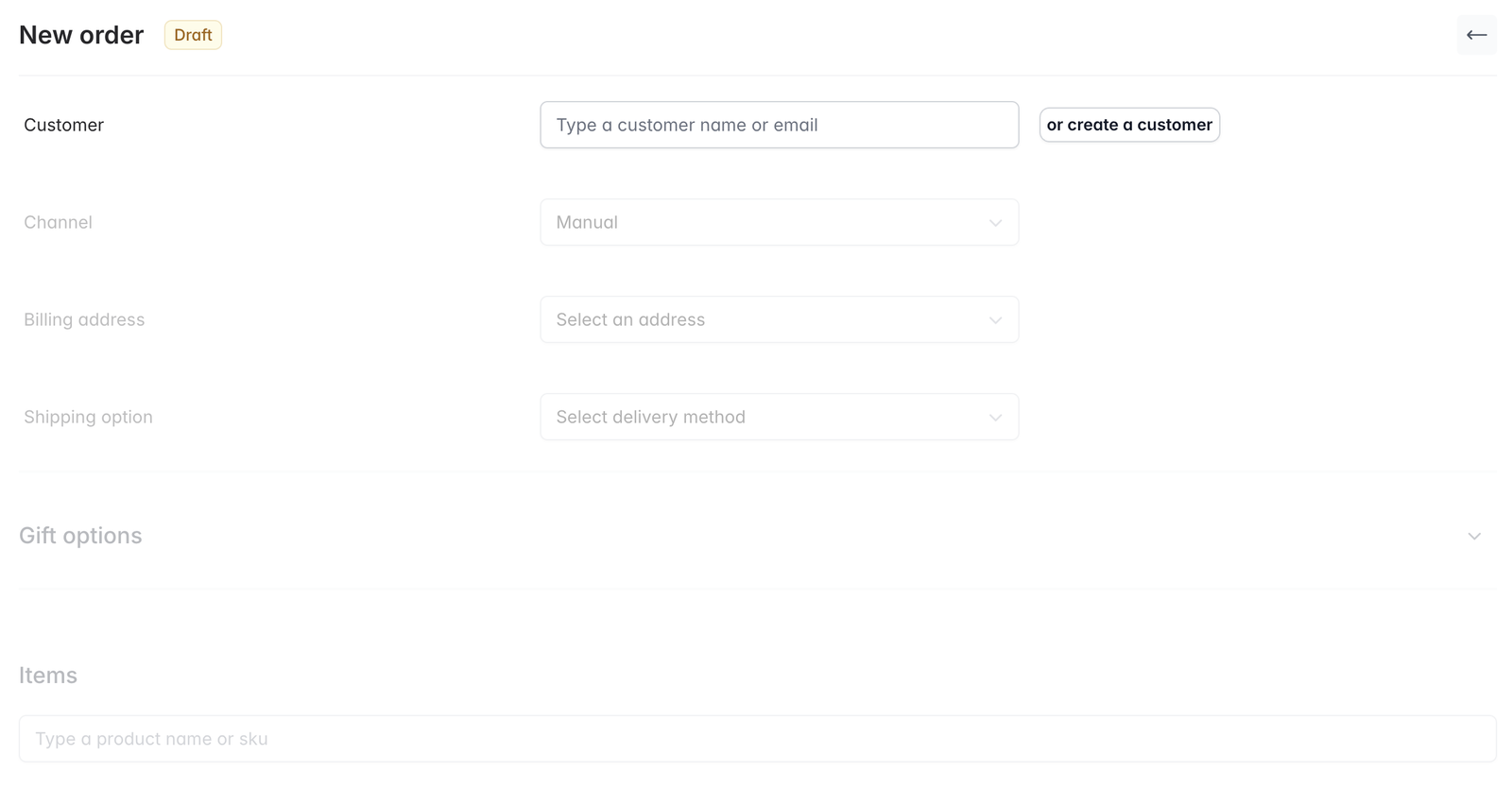 You can either select an existing customer by typing their name or email address in the lookup box, or create a new customer by clicking the **create a customer** button.
The create a customer button will open a panel to the right of the screen where you can create a new customer.
Select the appropriate channel for the order from the dropdown menu.
* **Cellar Door** - The order was placed at your cellar door
* **Event** - The order was placed at an event
* **Email** - The order was placed via email
* **Manual** - The order was created manually by you or a member of your team
* **Website** - The order should have been placed through your website
* **Phone** - The order was placed over the phone
* **Tasting** - The order was placed at a tasting
Select the appropriate billing address for the customer from the dropdown menu.
Select either **Pickup** or **Delivery**.
Select the appropriate shipping method for the order from the dropdown menu.
If the order is a gift, click the down arrow and complete the relevant fields.
Use the product selector to add products to the order. You can enter the product name or SKU.
Once you have selected a product update the quantity
Any relevent auto applied discounts should get applied when you select the first product. If you need to add a manual discount to the order you can do this by clicking the add discount button.
Review the order details and click the **Save** button at the bottom of the screen to save the order.
After creating an order you will be taken to the [order details](/orders/details) page where the order will have a **processing** status and a **pending** payment status.
You can either select an existing customer by typing their name or email address in the lookup box, or create a new customer by clicking the **create a customer** button.
The create a customer button will open a panel to the right of the screen where you can create a new customer.
Select the appropriate channel for the order from the dropdown menu.
* **Cellar Door** - The order was placed at your cellar door
* **Event** - The order was placed at an event
* **Email** - The order was placed via email
* **Manual** - The order was created manually by you or a member of your team
* **Website** - The order should have been placed through your website
* **Phone** - The order was placed over the phone
* **Tasting** - The order was placed at a tasting
Select the appropriate billing address for the customer from the dropdown menu.
Select either **Pickup** or **Delivery**.
Select the appropriate shipping method for the order from the dropdown menu.
If the order is a gift, click the down arrow and complete the relevant fields.
Use the product selector to add products to the order. You can enter the product name or SKU.
Once you have selected a product update the quantity
Any relevent auto applied discounts should get applied when you select the first product. If you need to add a manual discount to the order you can do this by clicking the add discount button.
Review the order details and click the **Save** button at the bottom of the screen to save the order.
After creating an order you will be taken to the [order details](/orders/details) page where the order will have a **processing** status and a **pending** payment status.