> ## Documentation Index
> Fetch the complete documentation index at: https://docs.marzipan.co/llms.txt
> Use this file to discover all available pages before exploring further.
# Overview
> A two-way email inbox for your customer conversations.
Messages is a two-way email inbox built into Marzipan. When a customer replies to one of your emails, their reply threads into a per-customer conversation, so you can keep every exchange in one place and respond without leaving the app.
To open it, click **Messages** in the main navigation menu.
## Layout
The inbox has two panes:
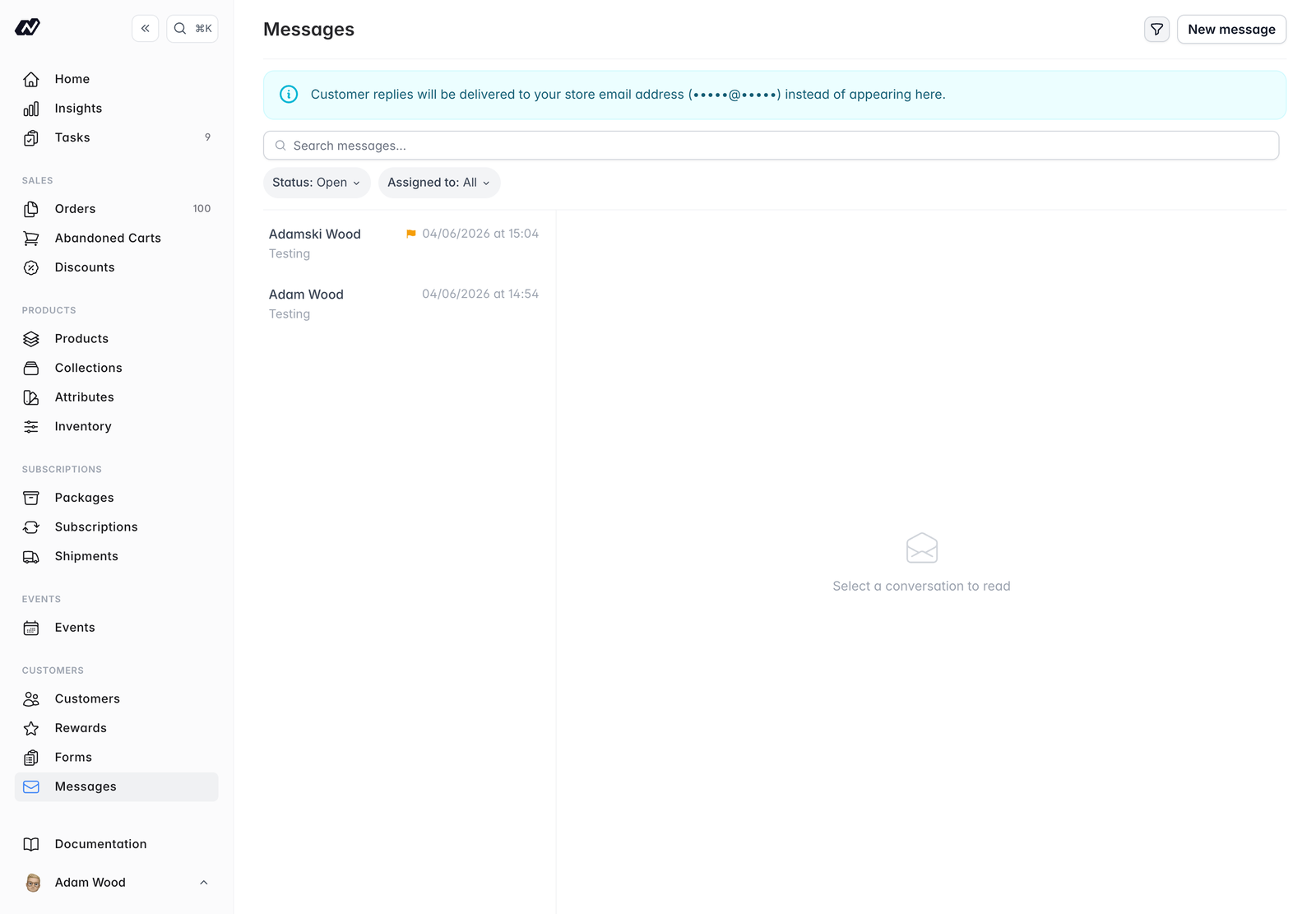 * **Conversation list (left)** — conversations grouped by customer, each showing unread and flagged indicators and a short preview. Flagged and unread conversations sort to the top.
* **Thread (right)** — the conversation you've selected.
## Reading and replying
Open a conversation to read the full thread, with incoming messages from the customer shown separately from your replies.
* Reply from the box at the bottom of the thread. Press **Cmd/Ctrl+Enter** to send.
* Use **Reply & close** to send your reply and close the conversation in one step.
Opening an unread, unassigned conversation automatically assigns it to you and marks it as read.
## Assigning and organising
Keep your inbox tidy and share the workload across your team:
* **Assign** a conversation to a team member.
* **Flag** a conversation to mark it for follow-up.
* **Close** a conversation when it's resolved, and reopen it if you need to.
You can filter conversations by status (`open` or `closed`) and by assignee (including **Me**), and search by customer or by subject and body.
## Compose
To start a fresh conversation with a customer, click **New message**.
## Form submissions
Submissions from your contact forms arrive in Messages as conversations, with the submitted field values shown inline so you have the full context before you reply. See [Forms](/forms/overview) for more on setting these up.
## Receiving replies
For customer replies to arrive in Messages, you need to set up **inbound email** by adding MX records to your sending domain. See [Settings > Email](/settings/email) for the details.
A banner appears in Messages if inbound email isn't configured yet, or if your domain's MX records haven't been verified. Until that's sorted, customer replies won't reach your inbox.
* **Conversation list (left)** — conversations grouped by customer, each showing unread and flagged indicators and a short preview. Flagged and unread conversations sort to the top.
* **Thread (right)** — the conversation you've selected.
## Reading and replying
Open a conversation to read the full thread, with incoming messages from the customer shown separately from your replies.
* Reply from the box at the bottom of the thread. Press **Cmd/Ctrl+Enter** to send.
* Use **Reply & close** to send your reply and close the conversation in one step.
Opening an unread, unassigned conversation automatically assigns it to you and marks it as read.
## Assigning and organising
Keep your inbox tidy and share the workload across your team:
* **Assign** a conversation to a team member.
* **Flag** a conversation to mark it for follow-up.
* **Close** a conversation when it's resolved, and reopen it if you need to.
You can filter conversations by status (`open` or `closed`) and by assignee (including **Me**), and search by customer or by subject and body.
## Compose
To start a fresh conversation with a customer, click **New message**.
## Form submissions
Submissions from your contact forms arrive in Messages as conversations, with the submitted field values shown inline so you have the full context before you reply. See [Forms](/forms/overview) for more on setting these up.
## Receiving replies
For customer replies to arrive in Messages, you need to set up **inbound email** by adding MX records to your sending domain. See [Settings > Email](/settings/email) for the details.
A banner appears in Messages if inbound email isn't configured yet, or if your domain's MX records haven't been verified. Until that's sorted, customer replies won't reach your inbox.