> ## Documentation Index
> Fetch the complete documentation index at: https://docs.marzipan.co/llms.txt
> Use this file to discover all available pages before exploring further.
# Overview
> Manage the images used across your store from one central library
The Media library is your central store of images. Images you add here are reused across products, bottle labels, share images, CMS content, and the rich-text editor.
To open your media library:
1. Log in to your Marzipan account
2. Click on **Media** in the main navigation menu
## Library
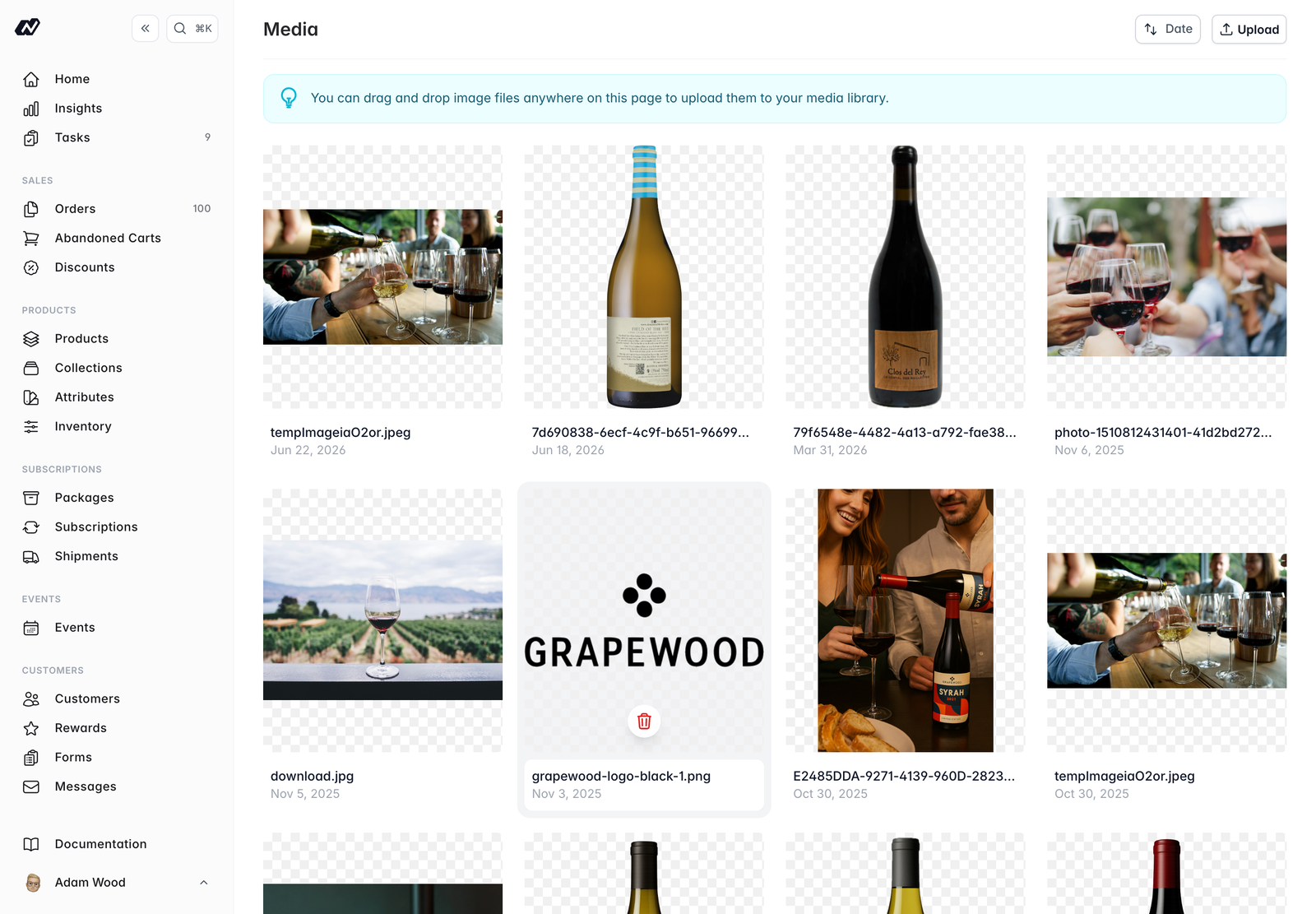 The library shows your images in a grid. Each image displays its **thumbnail**, **filename**, **alt text**, and **date**. You can sort the grid by date.
## Uploading images
There are two ways to add images:
* Click **Upload** to choose files from your device and add alt text
* **Drag and drop** images straight onto the page
Images can be PNG, JPG, or GIF, up to 10 MB each. After a drop, a bulk alt-text step lets you caption each image before it's saved.
## Managing images
* Click an image to edit its **alt text**
* **Delete** an image you no longer need
* An image that's in use can be **unlinked** from a record
Good alt text describes what's in the image. It improves accessibility for people using screen readers and helps your SEO.
The library shows your images in a grid. Each image displays its **thumbnail**, **filename**, **alt text**, and **date**. You can sort the grid by date.
## Uploading images
There are two ways to add images:
* Click **Upload** to choose files from your device and add alt text
* **Drag and drop** images straight onto the page
Images can be PNG, JPG, or GIF, up to 10 MB each. After a drop, a bulk alt-text step lets you caption each image before it's saved.
## Managing images
* Click an image to edit its **alt text**
* **Delete** an image you no longer need
* An image that's in use can be **unlinked** from a record
Good alt text describes what's in the image. It improves accessibility for people using screen readers and helps your SEO.