> ## Documentation Index
> Fetch the complete documentation index at: https://docs.marzipan.co/llms.txt
> Use this file to discover all available pages before exploring further.
# Overview
> Build custom forms and embed them on your site
Forms let you build custom forms - contact forms, newsletter sign-ups and more - in your dashboard and embed them on your website. Submissions are collected in Marzipan, and depending on the form type they can notify your team, start a conversation in your inbox, or add someone to a marketing list.
To view your forms:
1. Log in to your Marzipan account
2. Click on **Forms** in the main navigation menu
3. The overview page will display all of your forms
### Forms
The list shows each form and how it is performing.
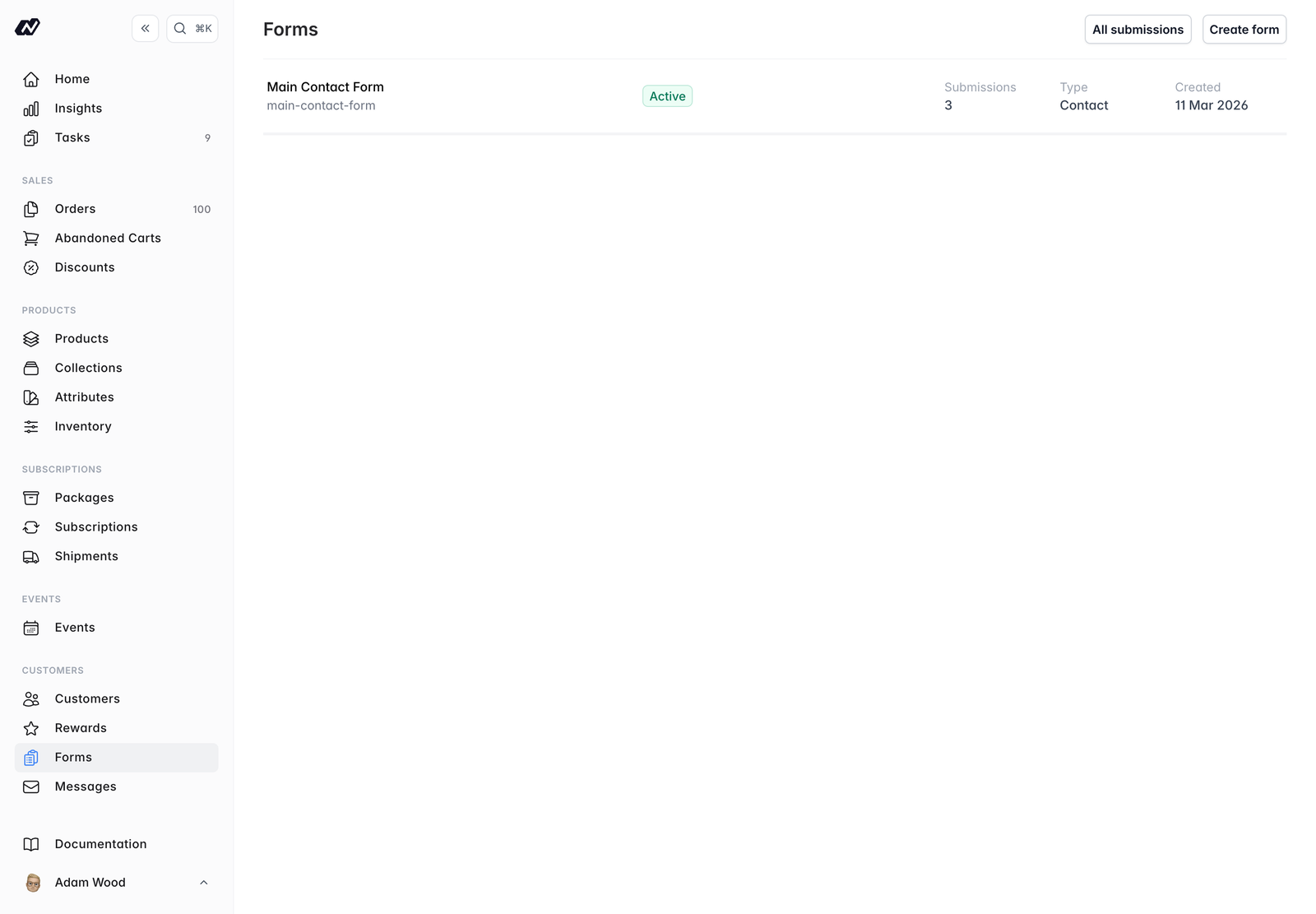 * **Name** - the form's name, with its slug
* **Status** - whether the form is active
* **Submissions** - how many submissions the form has received
* **Type** - `Contact`, `Newsletter` or `Custom`
* **Created** - when the form was created
Click on any form in the list to edit it, or to view the [submissions](/forms/submissions) it has received.
### Header actions
The top-right corner of the forms list has two actions:
* **Create form** - build a new form (see [Create](/forms/create))
* **All submissions** - view every submission across all of your forms
### Form types
Every form has a **type**, which determines what happens after someone submits it:
| Type | Built-in behaviour |
| -------------- | -------------------------------------------------------------------------- |
| **Contact** | Notifies your staff and creates a thread in [Messages](/messages/overview) |
| **Newsletter** | Subscribes the person to a marketing list |
| **Custom** | No built-in behaviour - the submission is simply recorded |
Whatever the type, you can still notify your team and send an auto-reply. See [Notifications](/forms/notifications).
## In this section
Build a form, add fields, and embed it on your site
Choose who is notified and set up an auto-reply
View and filter the submissions your forms receive
Embed a form with the web component
* **Name** - the form's name, with its slug
* **Status** - whether the form is active
* **Submissions** - how many submissions the form has received
* **Type** - `Contact`, `Newsletter` or `Custom`
* **Created** - when the form was created
Click on any form in the list to edit it, or to view the [submissions](/forms/submissions) it has received.
### Header actions
The top-right corner of the forms list has two actions:
* **Create form** - build a new form (see [Create](/forms/create))
* **All submissions** - view every submission across all of your forms
### Form types
Every form has a **type**, which determines what happens after someone submits it:
| Type | Built-in behaviour |
| -------------- | -------------------------------------------------------------------------- |
| **Contact** | Notifies your staff and creates a thread in [Messages](/messages/overview) |
| **Newsletter** | Subscribes the person to a marketing list |
| **Custom** | No built-in behaviour - the submission is simply recorded |
Whatever the type, you can still notify your team and send an auto-reply. See [Notifications](/forms/notifications).
## In this section
Build a form, add fields, and embed it on your site
Choose who is notified and set up an auto-reply
View and filter the submissions your forms receive
Embed a form with the web component